Collecting your group's registration numbers from WhatsApp
How to ask for details so the replies are easy to use, how to copy them out of WhatsApp on iPhone and Android, and how Glasto Quick Copy turns them into one page.
For most groups, the registration numbers live in a WhatsApp chat: sent at different times, in different formats, between memes and holiday plans. On ticket day that's the worst place to look for them. This guide shows how to collect them so they're easy to use, and how to get them out of WhatsApp and onto one page in a couple of minutes.
All the examples below use made-up details. Never post real registration numbers anywhere public.
Ask in a way that's easy to copy
The more alike the replies are, the less checking you'll need to do. Send one clear request with an example:
Please reply with your first name, registration number and the postcode on your registration (not your current one if you've moved), all in one message. Like this: Alex 1029384756 BS1 4DJ. Copy the number from your See Tickets email rather than typing it.
Three things make the replies much easier to use:
- A name in every message. WhatsApp shows who sent a message, but when you copy messages out, Glasto Quick Copy ignores the sender and uses the name written in the message. That's what lets one person send details for a partner or a teenager.
- Text, not a screenshot. A photo of an email can't be copied. Ask people to copy and paste their number from the confirmation email.
- The registered postcode. Ask for "the postcode on your registration", not "your postcode". Students and people who've moved are the usual mix-ups.
For more messages like this one, see messages to send your Glastonbury group.
Copying several messages at once
You don't need to copy each reply separately. In WhatsApp on iPhone or Android, press and hold the first message with someone's details, then tap each of the others to select them too, and choose Copy. Where the Copy button sits depends on your phone and your version of WhatsApp, so look along the top or bottom of the screen, or in the menu.
The copied text includes the date, time and sender at the start of each message. That's fine: Glasto Quick Copy understands that layout from both iPhone and Android and strips it off.
Or export the chat
If the replies are spread across weeks, exporting can be easier than selecting. WhatsApp's own help pages describe it like this:
- On Android: open the chat, tap the menu (the three dots), then More, then Export chat.
- On iPhone: open the chat, tap the group or contact name at the top, then Export chat.
Choose Without media, and save or send the file somewhere you can open it, like your notes or your own email. It's a plain text file. The tool's paste box takes up to 6,000 characters, which is plenty for a set of replies but not for months of chat, so open the file and copy just the part with the details.
What Glasto Quick Copy picks out
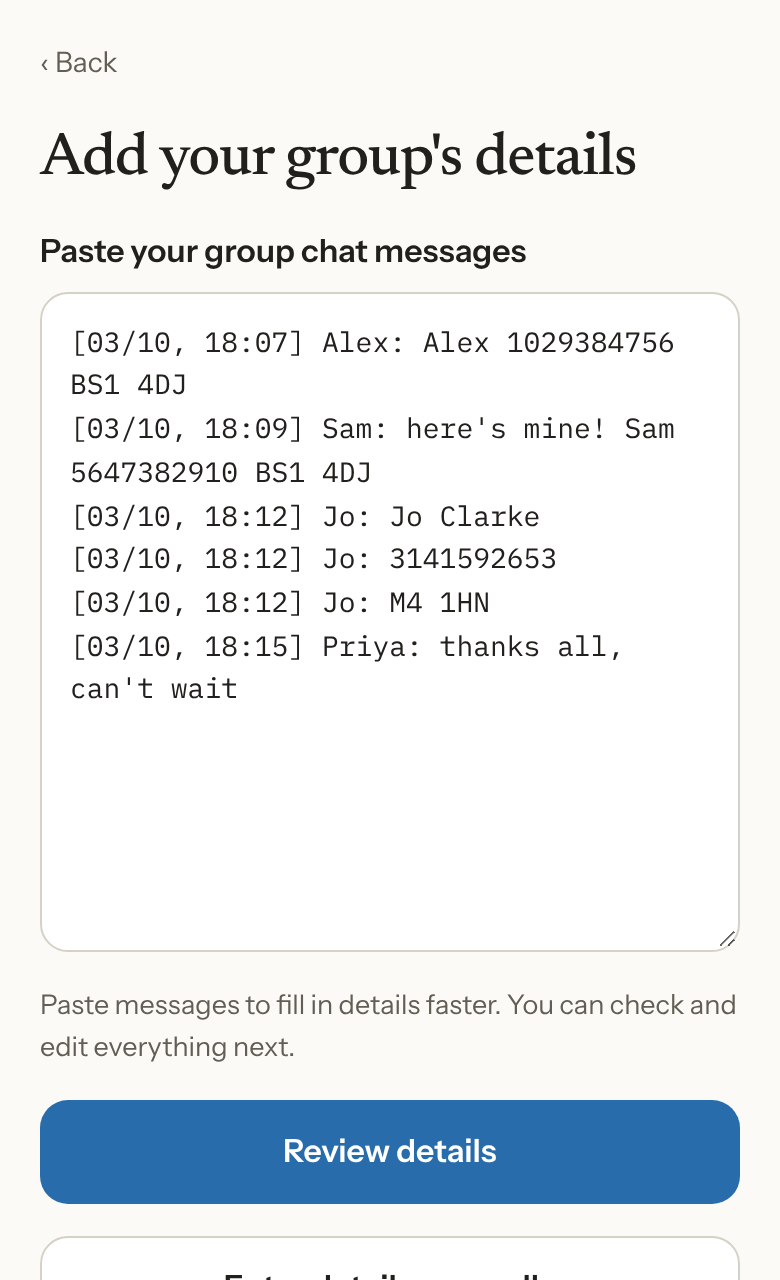
Open the tool, choose Set up your group and paste. The tool reads the text on your phone, and finds:
- Registration numbers, even with spaces or dashes in them.
- Postcodes, in capitals or not, with or without the space.
- Names, from the words next to each number. Filler like "hi", "here's mine" or "thanks" is ignored.
- Details on one line or spread over several, as when someone sends their name, number and postcode as three separate messages.
A few things to know:
- A group holds up to six people, the most one booking can cover. Anyone after the sixth is left out, so for a bigger group, paste each booking group separately and save it as its own group.
- If a message has a number but no name, that person is called Person 1, Person 2 and so on, and you can type their name in.
- If the tool can't find someone's postcode, it flags that person so you can fill it in before saving.
- Chat lines with no registration number, like "who's booking?", are skipped.
Check before you save
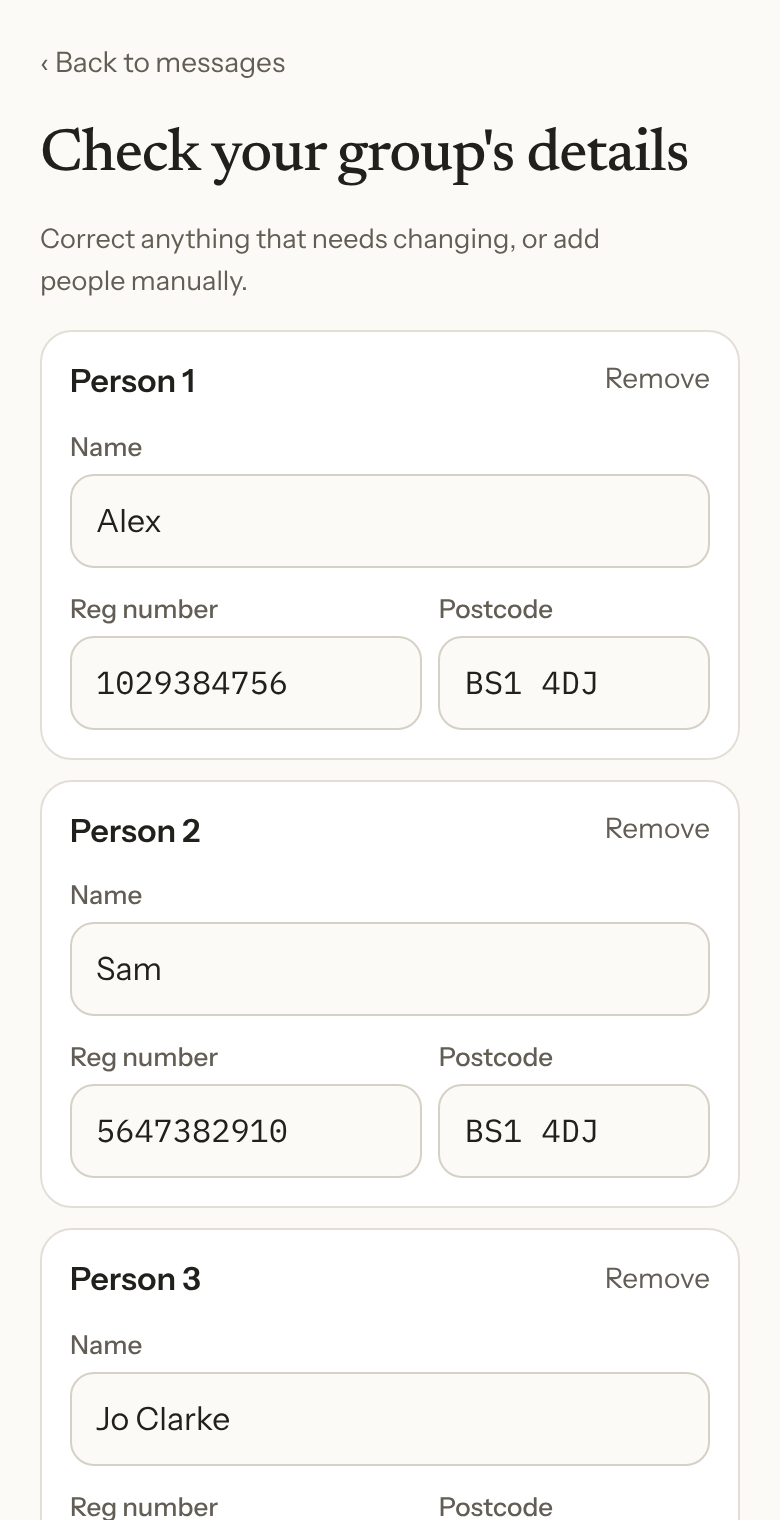
The tool shows you everyone it found before anything is saved. Go down the list and compare each one with what the person sent. It's also the moment to check the things no tool can: that each person's photo was accepted, not just submitted, and that the number is from their most recent confirmation email. See how registration works for a five minute check.
Then save the group and send everyone the link, so whoever gets through the queue has the same page. See how to use Glasto Quick Copy.
Keeping the numbers private
- Ask in your own group chat, not in a big community group or a public post. Registration numbers and postcodes are what someone needs to book in your name.
- The pasted text is never stored. Only the names, numbers and postcodes you save are kept, in your browser on your phone. The tool's code never sends them anywhere.
- Share the group's link only with the group. Anyone with the link can read the details in it.
- Clear up afterwards. Once the sale and the resale are over, there's no need to keep the details. Groups and links are also cleared on a seasonal schedule.
Not using WhatsApp?
The tool reads plain text, so details copied from another messaging app, an email or a notes app usually work too, as long as each person's name, number and postcode are together. If your group sends everything in a different way, choose Enter details manually and type them in.